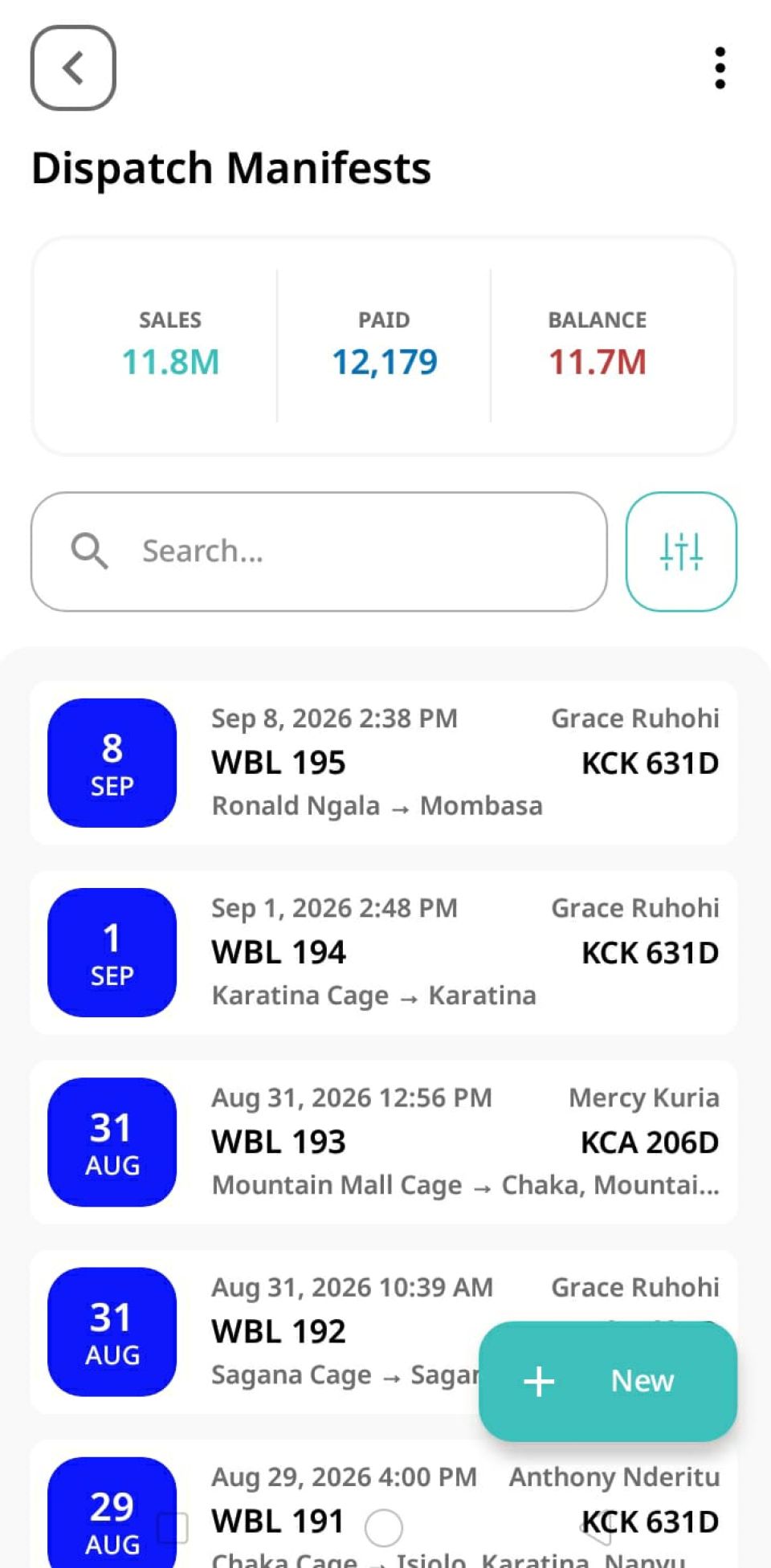
Log in to your CargoPal dashboard and select Deliveries. This opens the Delivery Manifests view, displaying all previous local delivery assignments.
Start a New Delivery Manifest ➕
Tap the New (+) button in the bottom right corner of your screen to open the Delivery Manifest form.
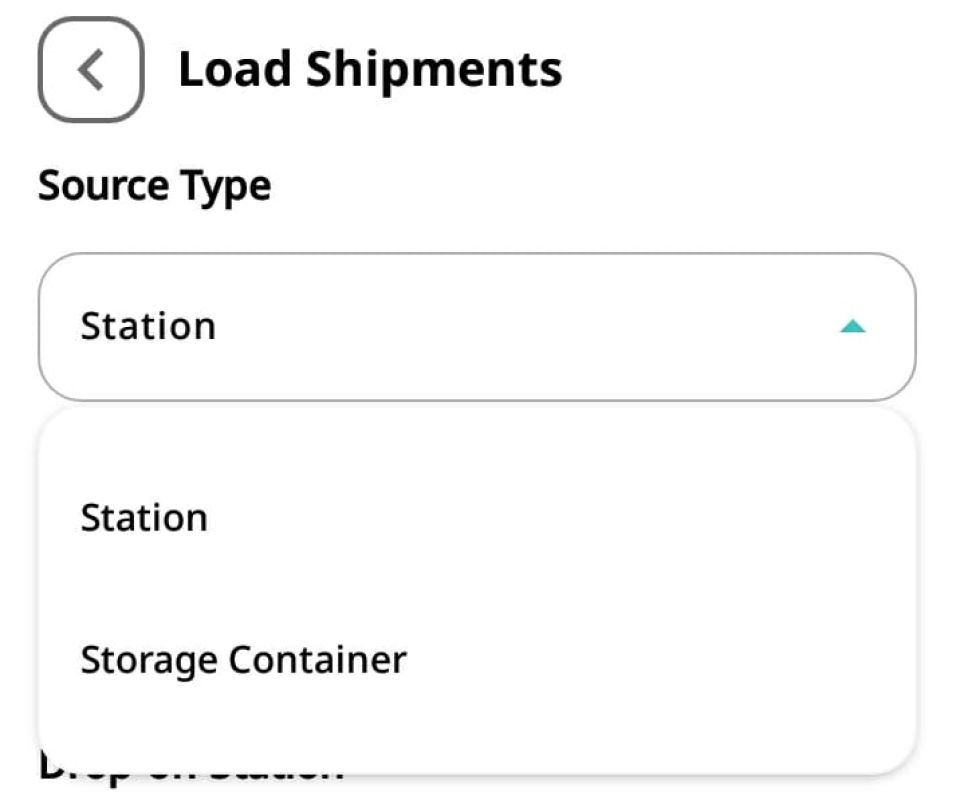
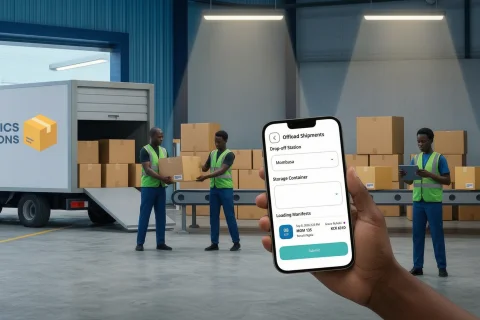
Select Your Storage Container 🏭
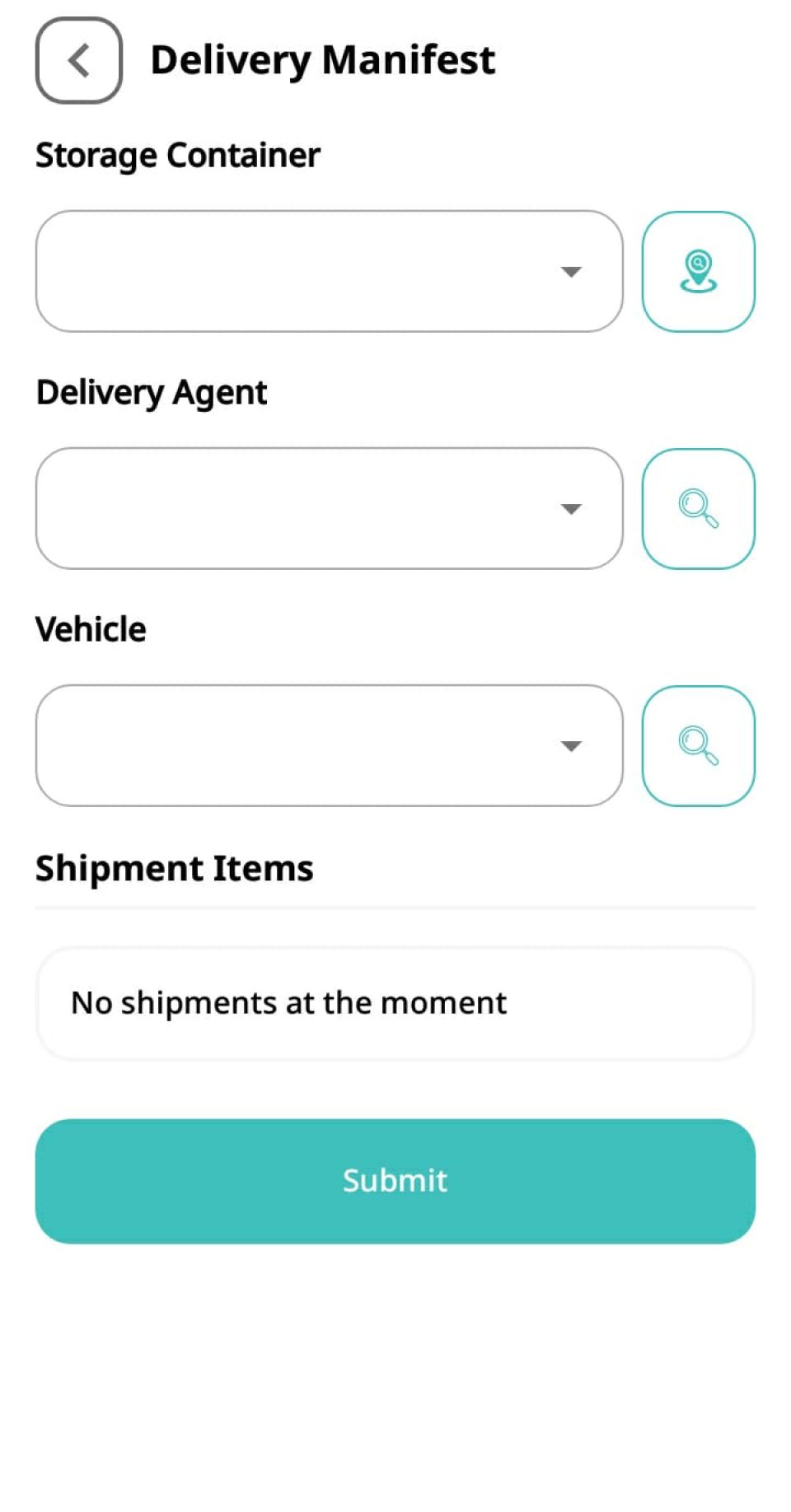
Select your Storage Container from the dropdown menu.
(💡 Pro Tip: Tap the Location Icon next to the dropdown field to easily search and locate your storage container!)
Assign Delivery Agent and Vehicle 🛵
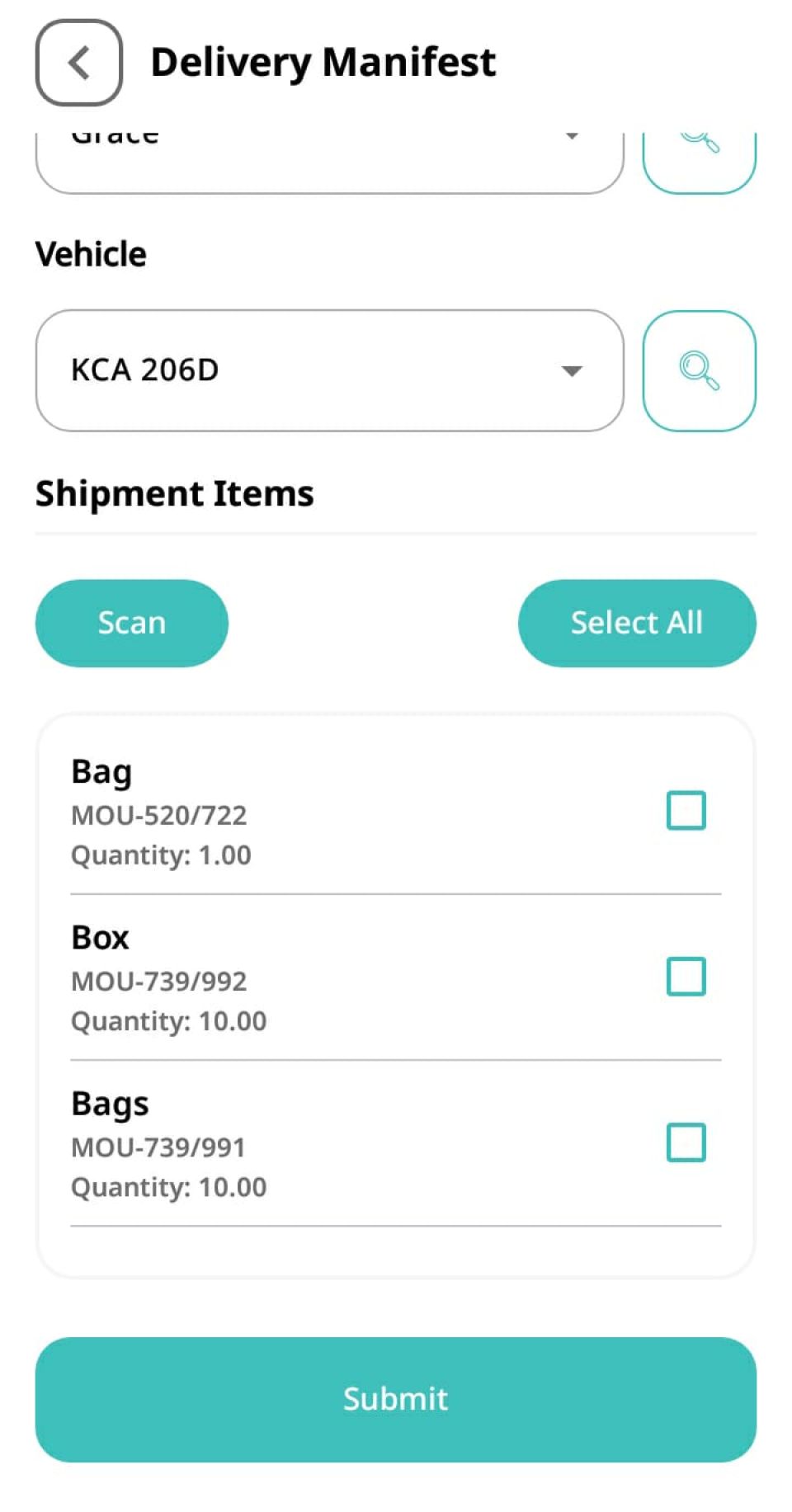
Delivery Agent: Choose the specific driver, rider, or agent responsible for delivering the packages directly to the recipient.
Delivery Vehicle: Select the delivery vehicle (motorcycle, van, or truck) assigned to the trip.
Select Items and Submit ✅
Once your container, agent, and vehicle are selected, CargoPal automatically displays a list of matching shipment items below. Select the relevant packages for this trip and tap Submit.
Track Status Updates 🚀
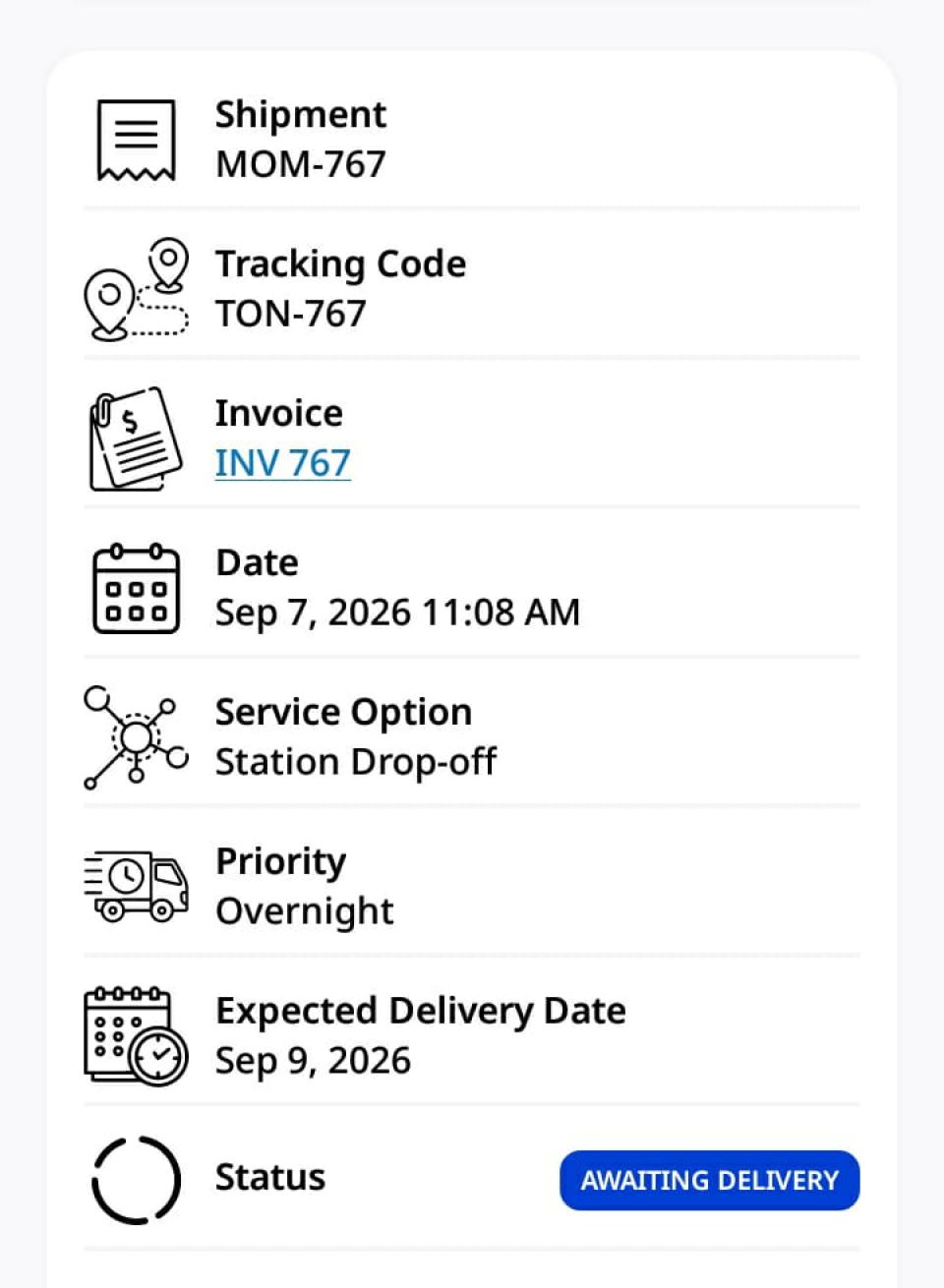
Upon submission, the status of all selected shipments updates to Awaiting Delivery.
Part 2: Accepting Delivery Custody (Agent View) 🤝
Once the manifest is created, the assigned delivery agent must accept the assignment from their device to confirm custody:
Open Assigned Delivery Manifest 📂
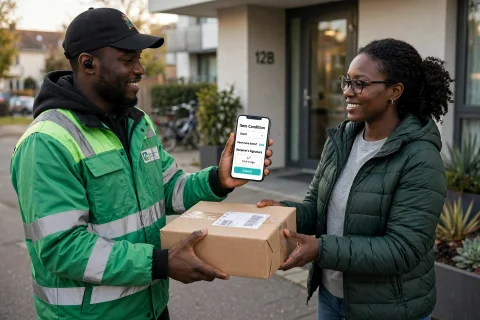
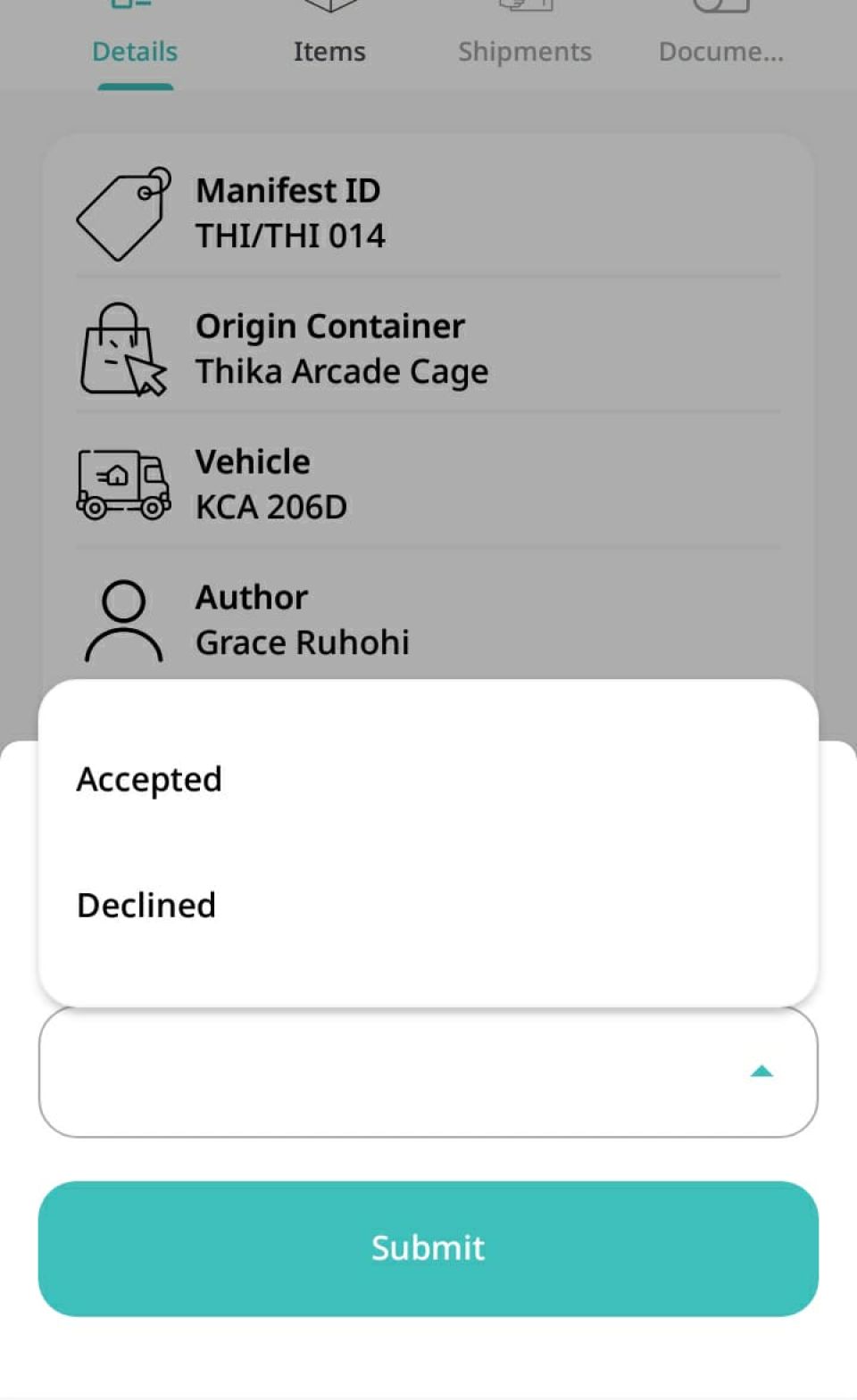
The delivery agent opens the assigned Delivery Manifest from their app view to review the manifest ID, origin container, and vehicle details.
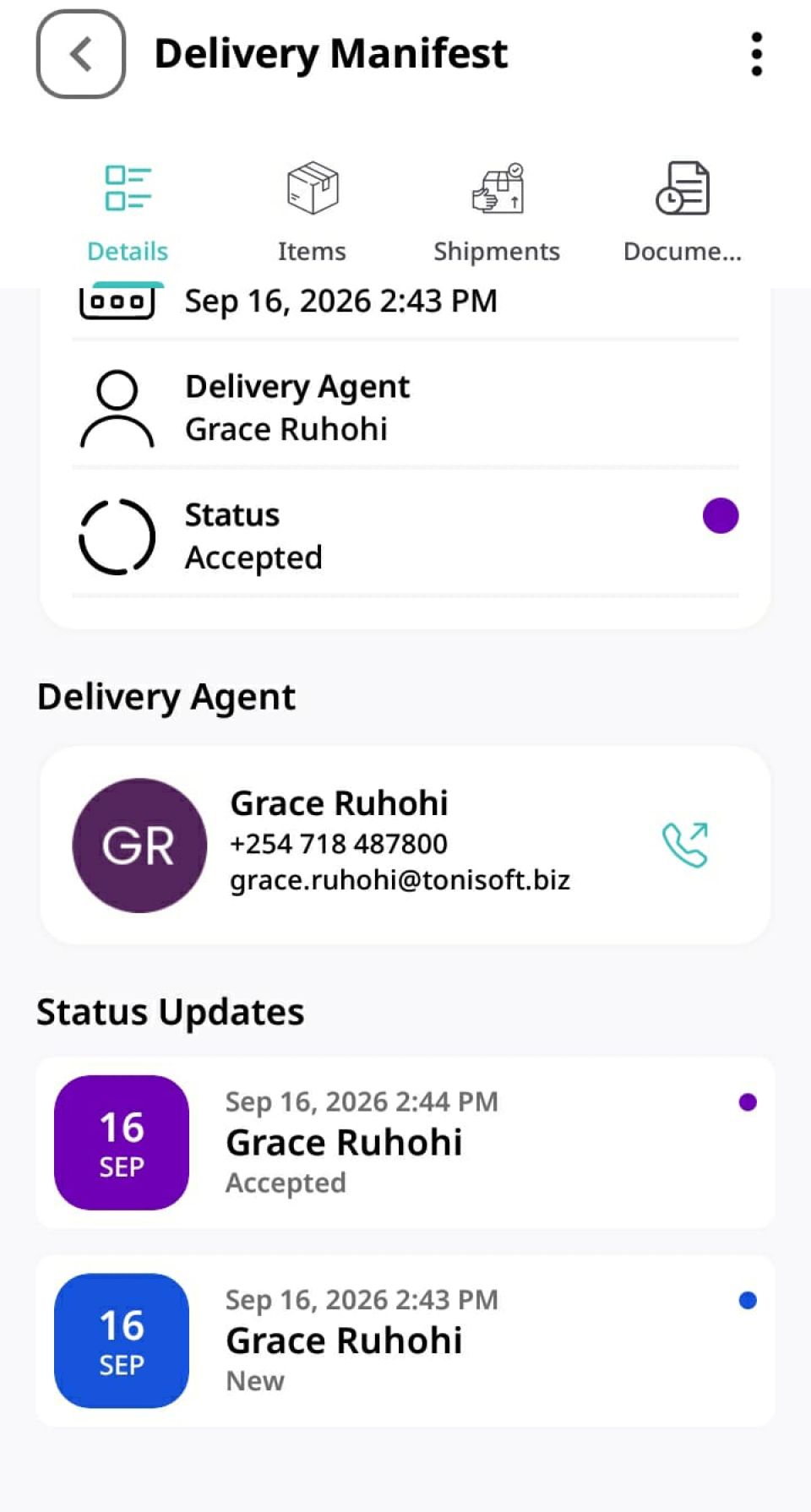
Tap the three dots (⋮) in the top right corner of the screen and select Review.
Accept the Assignment
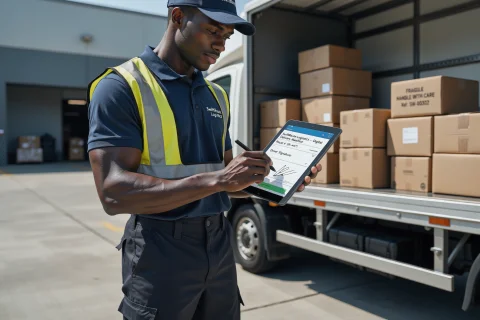
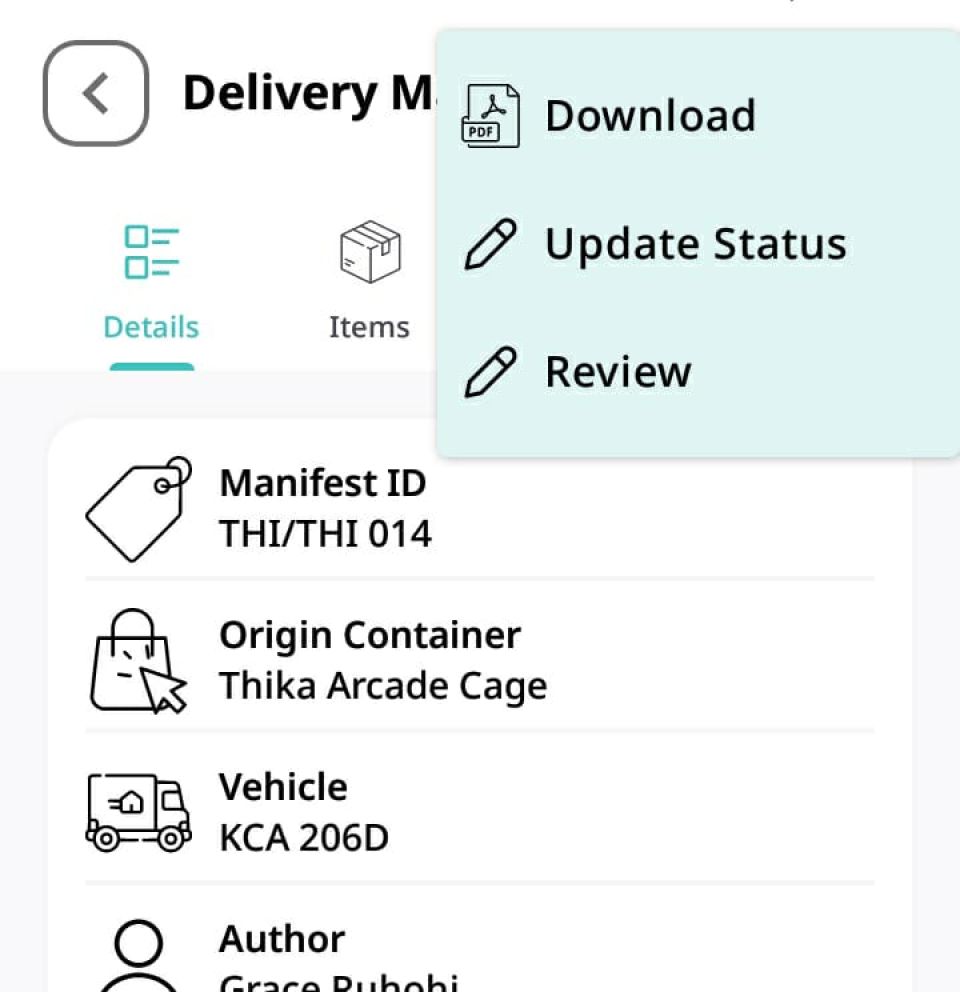
In the review modal, tap the status dropdown menu, choose Accepted (or Declined if there is an issue with the assignment), and tap Submit.
Custody Updated 🔒
The system updates the manifest status to Accepted, establishing the delivery agent as the official current custodian of the shipment items as they head out on the road! 🎉